AI notetaker for Microsoft Teams
AI Notetaker for Microsoft Teams
Cuelyte AI writes down your Microsoft Teams meetings from your own computer and turns them into notes when the call ends - no bot in the participant list, nothing to install in Microsoft Teams.
Most Microsoft Teams notetakers work by sending a bot into the meeting. It shows up as an extra participant, everyone is asked to let it in, and some companies block it outright.
Cuelyte AI takes the other route. It runs on your Mac or Windows PC and hears Microsoft Teams the way you do - through the Teams desktop app or Teams on the web - plus your microphone for your own words. The meeting sees nothing new.
How it works
Taking notes on a Microsoft Teams call
- Step 1
Open Meeting mode
Start Cuelyte AI on your Mac or Windows PC and pick a meeting mode - Team Meet, Sales Call, Lecture or your own.
- Step 2
Join your call as usual
Zoom, Google Meet, Microsoft Teams or any app that plays audio. Nothing joins the meeting with you.
- Step 3
Press the mic
Cuelyte AI writes down the other people from your computer's audio and you from your microphone, live.
- Step 4
End & write notes
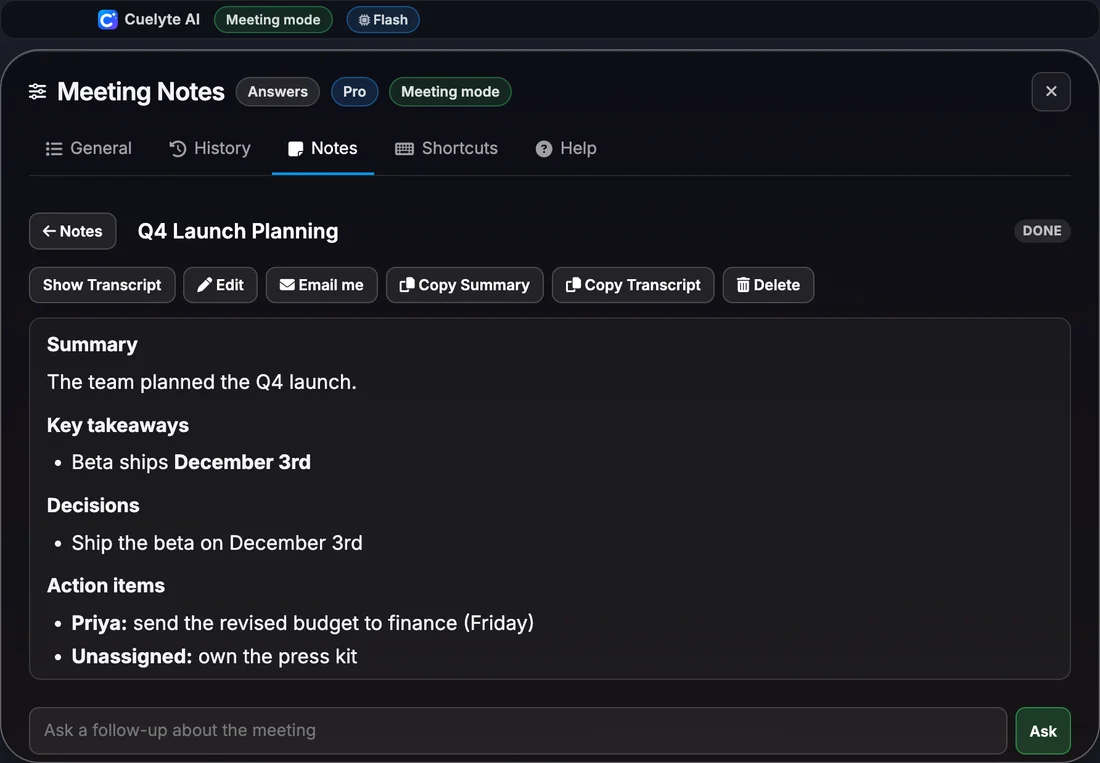
Get a title, summary, decisions and action items in seconds - saved on your computer, ready to email to yourself.
It works the same in work and personal Teams accounts, because Cuelyte AI never signs in to Teams or joins the meeting.
What the notes capture
- Everyone else on the call, from the audio your computer plays
- Your own words, from your microphone, marked You
- Names, numbers and dates exactly as they were said
- Decisions and action items, with owners when someone was named
Every set of notes has
Summary, Key takeaways, Decisions, Action items, Open questions.
Everything the notetaker does
- No bot joins your call - it listens on your own computer
- Live transcript as the meeting runs, with your voice marked You and everyone else Others
- Summary, key takeaways, decisions, action items and open questions when the meeting ends
- Ask follow-up questions about any meeting, like "what did we agree on pricing?"
- Search, edit and copy your notes, or reopen a meeting to keep adding to it
- Email the notes to yourself in one click, with a Word copy attached
- Notes in English, Hindi and six more languages; understands Hinglish
- Saved on your computer, and hidden from screen sharing with Hide mode
AI Notetaker for Microsoft Teams: questions
Do other people on the Microsoft Teams call see a notetaker?
No. Cuelyte AI never joins the Microsoft Teams meeting, so there is no bot or extra name in the participant list. If you use Share, turn on Hide mode and its window stays out of what you share too.
Do I need Microsoft Teams admin rights or an integration?
No. Cuelyte AI does not sign in to Microsoft Teams or connect to your account. It listens to the sound Microsoft Teams plays on your computer, so it works on any Microsoft Teams plan.
Does it work with headphones on Microsoft Teams?
Yes. It reads your computer's audio output directly, so it hears the call through speakers or headphones.
Should I tell people I am taking notes?
Yes - let people know when you are writing a meeting down, and follow your company's policy and local law on recording.
Take notes on your next Microsoft Teams call
Start free in a minute - no card needed. Pro is $10 a month with unlimited listening.